Hey! You are building a WordPress website, aren’t you? It is an amazing platform, with an extraordinarily high degree of flexibility. But let’s face it. Sometimes getting your pages or posts to look exactly the way you want using the standard editor can feel a bit like wrestling a bear. That is why page builders were invented – and if you are looking for Download Cornerstone, here is just the right spot. I have spent many, many hours fiddling around with WordPress sites; using the right tools can be the difference between frustration and creative flow.
Cornerstone is created by Themeco, the same company that developed the popular themes X Theme and Pro Theme. It is a visual front-end page builder plugin for WordPress. The idea of this premium plugin is to enable you to build complex page layouts using a simple drag-and-drop interface. We are going to go into the detail of what Cornerstone offers, explore its features, explain the differences between standalone Cornerstone, X and Pro, and show how to install the plugin. Soon, you’ll wonder why you ever thought building sites had to be grueling.
What Exactly is Cornerstone?
With Cornerstone, you design WordPress pages and posts live on the front end. There’s no abstract block selection mode, and you don’t have to write lines of html,c.s.s. Changes happen in real-time as you make them. It’s a far more immediate and intuitive way of working. Think of it like sculpting clay instead of hewing stone.
Once closely tied to Themeco’s X Theme, Cornerstone has taken wings. While it’s still the engine driving content creation in X and Pro themes for sure, it has been released as a standalone plugin. This means it can bring these powerful visual editing capabilities to other themes as well. Not all themes – or all installations – are alike, so always best to check! The core idea is to provide an interface that is intuitive and powerful, seamlessly integrated with the sleek lines of design, for creating almost any layout you can imagine.
If you’re aiming to download Cornerstone, understanding its role as both a bundled tool and a standalone powerhouse is key.
Key Features of Cornerstone
What makes Cornerstone stand out? It’s not just one thing, but a combination of robust features working together. I’ve found these particularly useful:
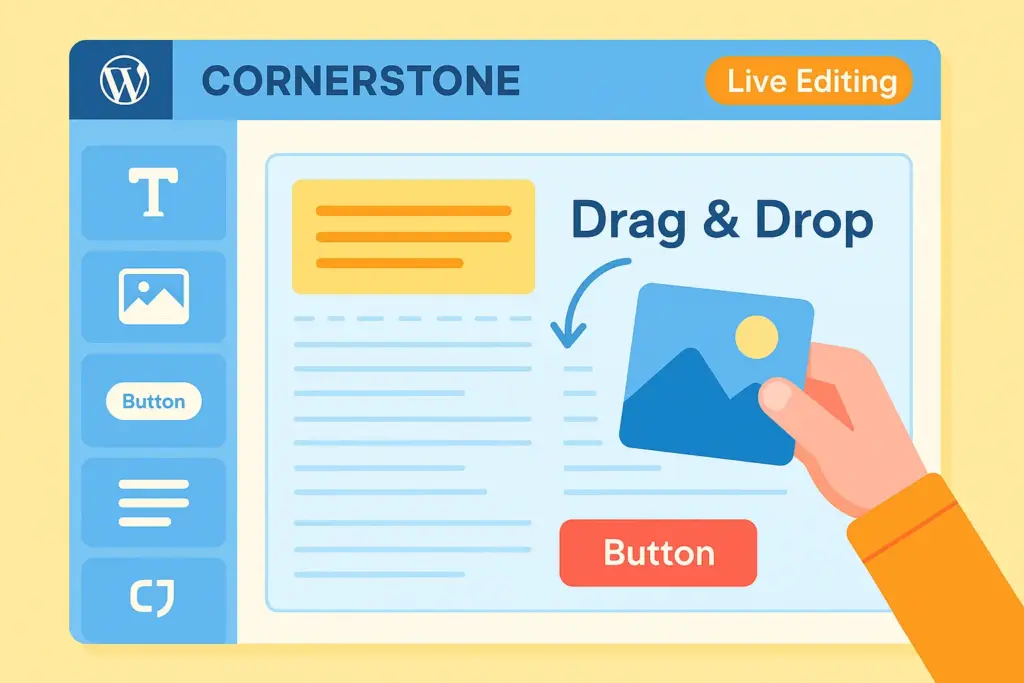
Intuitive Drag-and-Drop Interface & Live Editing
This is the heart of Cornerstone, you will compose everything right here. You literally drag elements (like text blocks, images, buttons, sliders) from a sidebar onto your page canvas, arrange them just so. Want to move something? Drag it. Want to edit text? Click and type directly on the page. You see exactly what your visitors will see, as you build it. This immediate visual feedback loop speeds up the design process immensely. No more constant saving, previewing, and tweaking in different tabs!
Rich Library of Elements
Cornerstone is packed with a variety of content elements. From basic building blocks such as headlines, text, images and buttons to more complex beauty like accordions, tabs, sliders, testimonials or even dynamic content placeholders –all yours to use right now instead of installing 100 separate plugins just for basic functionality.
Pre-built Templates and Blocks
Starting with a completely clean sheet can be pretty daunting. Cornerstone will often ship (especially in its premium/bundled forms) beautifully designed templates for complete pages or larger sections (called Blocks). You click these, bring them in, change the content, and you have a great-looking layout ready to go in minutes. It’s a great way to get your design off the ground or to get inspired by others’ work.
Responsive Design Controls
In today’s multi-device world when your website needs to look good on both computers and phones as well as tablets too, Cornerstone comes with built-in tools so that you can preview each design at different screen sizes. It’s as easy as tweaking margin values or adding some padding here, increasing font size there–or even turning off those adverts only for users on touch-screen devices where it will not work anyway. Having this kind of power at your fingertips is key to good user experience across all devices everywhere.
Global Blocks & Dynamic Content
Imagine creating a call-to-action section once and then reusing it across many pages. Edit one time in a single place, see changes everywhere. That’s the power of Global Blocks. Also, with Dynamic Content features (often more evident in Pro theme integration or premium versions) can pull content directly from WordPress custom fields, user data or post information, making truly personalized and data-driven layouts.
Role-based builder permissions
Cornerstone’s permission settings control access to builder features and post types for WordPress user roles. They do not set the number of users or replace WordPress user administration. See the official permission guide.
Why Use a Page Builder Like Cornerstone?
You might be wondering, “Do I really need a page builder?” For many WordPress users, the answer is a resounding yes. Here’s why I often recommend tools like Cornerstone:
- No Coding Required: Create sophisticated layouts that would normally require deep HTML, CSS, and maybe even JavaScript knowledge, all visually.
- Speed Up Development: What might take hours coding by hand can often be achieved in minutes with drag-and-drop.
- Design Freedom: Break free from the constraints of your theme’s default templates. Design landing pages, portfolio items, or unique blog post layouts exactly how you want them.
- Consistency: Features like Global Blocks help maintain a consistent design language across your entire site.
- Empowerment: It puts design power directly into your hands, reducing reliance on developers for every visual tweak.
If the idea of gaining this level of control appeals to you, then figuring out how to download Cornerstone is your next logical step.
Cornerstone standalone, X and Pro compared
These are different product configurations, not a free edition versus a premium edition.
- X theme: Cornerstone is installed as a separate included plugin for page and component building.
- Standalone Cornerstone: a paid plugin for use with other WordPress themes, with page design, dynamic content and Components.
- Pro theme: includes Cornerstone within the theme and adds header, footer and layout building, plus the Grid Editor.
Installing standalone Cornerstone does not unlock Pro’s theme-building features. Existing Pro users should use the integrated builder. Check the exact product before choosing a download.
Sources checked 29 October 2026: Themeco’s product comparison and Cornerstone overview. For a broader evaluation, see our Cornerstone builder review.
How to download Cornerstone
Alright, let’s get to the action! How do you actually get the plugin files?
- Already using X or Pro: use the download and installation route associated with your theme purchase. X uses the separate Cornerstone plugin; Pro has the builder integrated.
- Standalone purchase: follow the standalone option on Themeco’s Cornerstone page, which identifies CodeCanyon as its standalone sales channel. Check the purchase terms for updates and support.
- PureGPL listing: check the plugin version, package contents and supplier update/support terms before downloading. Do not assume a developer account, Pro theme or account-only templates are included.
Choose Your Cornerstone Version:
Select the version that best suits your needs.
Check the PureGPL listing for its available version, update arrangements and support terms.
Quick Installation Guide
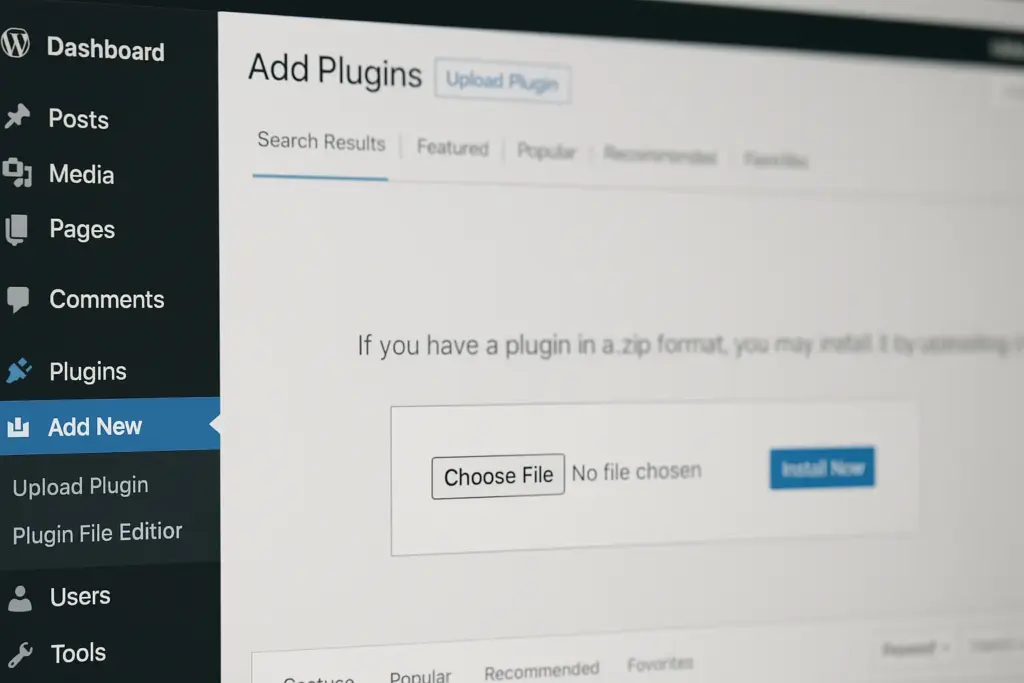
Once you have the premium `.zip` file from your Download Cornerstone source (like the Premium Download link above), installing it is straightforward:
- Log in to your WordPress Dashboard: Navigate to where you manage your site.
- Go to Plugins: Find “Plugins” in the left-hand sidebar and click “Add New”.
- Upload Plugin: At the top of the “Add Plugins” page, click the “Upload Plugin” button.
- Choose File: Click “Choose File” and select the `cornerstone.zip` file you downloaded.
- Install Now: Click the “Install Now” button. WordPress will upload and unpack the plugin.
- Activate Plugin: Once installation is complete, click the “Activate Plugin” button.
That’s it! Cornerstone should now be active on your site. You’ll likely find its launch point when you edit a page or post (often a button like “Edit with Cornerstone”).
Getting Started with Cornerstone: A Mini-Guide
Okay, you’ve managed to download Cornerstone and install it. Now what? Here’s a super quick rundown of the basic workflow:
- Launch Cornerstone: Edit a page or post. You should see a button inviting you to edit with Cornerstone. Click it!
- The Interface: You’ll typically see your page preview on the right and a sidebar on the left. This sidebar contains sections, rows, elements, templates, and settings.
- Add Sections & Rows: Pages are built with Sections (big containers) that hold Rows. Rows then hold Columns, where your actual content Elements go. Start by adding a section.
- Add Elements: Open the ‘Elements’ tab in the sidebar. Find an element you want (e.g., ‘Headline’, ‘Image’, ‘Button’) and drag it into a column on your page.
- Edit Elements: Click on any element on the page. The sidebar will change to show the ‘Inspector’ view, where you can customize everything about that element – text content, colors, spacing, borders, animations, etc.
- Responsive View: Look for icons (usually at the bottom or top) representing different screen sizes (desktop, tablet, mobile). Click these to preview and adjust your design for each view.
- Save Your Work: Don’t forget to hit the ‘Save’ button regularly!
This is just scratching the surface, but it covers the core mechanics. The best way to learn is to jump in and experiment!
Tips for Getting the Most Out of Cornerstone
Once you’re comfortable with the basics after your initial download Cornerstone and setup, here are a few tips I’ve picked up:
- Explore Templates: Seriously, check out the pre-built templates and blocks if your version includes them. They are massive time-savers and great learning tools.
- Master the Inspector: Spend time clicking through all the options available when you inspect an element. There’s a ton of granular control hidden in there.
- Understand Margin & Padding: Getting spacing right is key to good design. Learn the difference between margin (space outside an element) and padding (space inside an element).
- Use Global Blocks: For repeating content like call-to-actions or contact info sections, use Global Blocks. It saves SO much time on updates.
- Check Responsive Views Often: Don’t wait until the end to check mobile/tablet views. Make small adjustments as you go.
Frequently Asked Questions (FAQ)
- Is Cornerstone compatible with my theme?
-
You generally won’t have trouble, unless your theme builder or heavy customizations are at odds with the well-coded Cornerstone. If it’s possible that there is a problem, then testing on a staging site is always good practice. However, if there is any ambiguity or question at all, test it on a staging site first. The version included with X/Pro has optimized code that’s tailored specifically to work as standard with these themes.
- How do I get support if I download Cornerstone?
-
You get official support from Themeco if you buy the premium version directly from them. If you acquire the premium version (such as the Premium Download button on this page) therefore support typically comes from community forums or the provider’s own help channels. This focuses on installation and basic usage rather than giving you a hand when customizing deeply.
- Will I get updates if I use the Premium Download?
-
Update delivery depends on where you obtained the product. Check the provider’s current instructions and entitlement. Developer update access and official support do not automatically accompany a third-party download.
- Can I use Cornerstone to build headers, footers, and archive pages?
-
Header, footer and layout building require Pro. Standalone Cornerstone focuses on page and post content, dynamic content and Components. Check the current Themeco product comparison rather than assuming a premium standalone download includes full theme building.
- What’s the difference between Cornerstone and Elementor/Divi/Beaver Builder?
-
As mature visual page builders, all of them have visual interfaces but many of the contents differ: in number and nature of elements, in model of pricing and in which ecosystem are they part of (corner-stone is highly integrated with x/pro). Cornerstone is appreciated as an essential item in those kinds of themes thanks to its wealth of features and controls. The most common way to find one that suits your way of working best is by trying out demos or using the free versions (should they be available, of course) from each.
Conclusion: Should You Download Cornerstone?
So, we have got a lot to talk about. From understanding what Cornerstone is and exploring its features, to a comparison of different versions and guiding you through the Download Cornerstone and installation process.
In my experience Cornerstone is a truly capable and potent visual builder. I love it especially for its vaste range of features and fine-grained control over design elements. Like any advanced tool, it has a learning curve.But the ability to create custom layouts without coding is vastly empowering.
If you are already using the X or Pro theme, then you will have some idea of what Cornerstone is capable of already. If you’re looking for a standalone builder to use with another theme, then a premium version presents considerable flexibility and power. Choose the configuration that includes the features you need, and verify template access separately.
WordPress Security: https://blog.puregpl.com/category/wordpress-security/