
If you want to download iThemes BackupBuddy, first identify the product behind the old name. BackupBuddy became Solid Backups – Legacy and is now described in the vendor’s documentation as Kadence Backups Legacy. It is different from the current cloud-first Kadence Backups service.
I’ve witnessed the damage data loss can cause and the relief a recent backup brings. The important question is whether you can restore the data you need, not whether a plugin promises peace of mind.
BackupBuddy, Legacy and the current cloud service
The vendor’s product identification guide distinguishes two systems:
- Legacy, formerly BackupBuddy: uses the
backupbuddyplugin folder, runs backups from WordPress Admin and restores through ImportBuddy. It is in maintenance mode, with no new features and bug fixes considered individually. - Kadence Backups, formerly Solid Backups – NextGen: uses the
solid-backupsfolder, connects through SSH/SFTP and manages backups in Kadence Central with Kadence cloud storage.
These are separate products. There is no in-place migration between their backup histories. A Legacy plugin ZIP does not include a subscription to the cloud service.
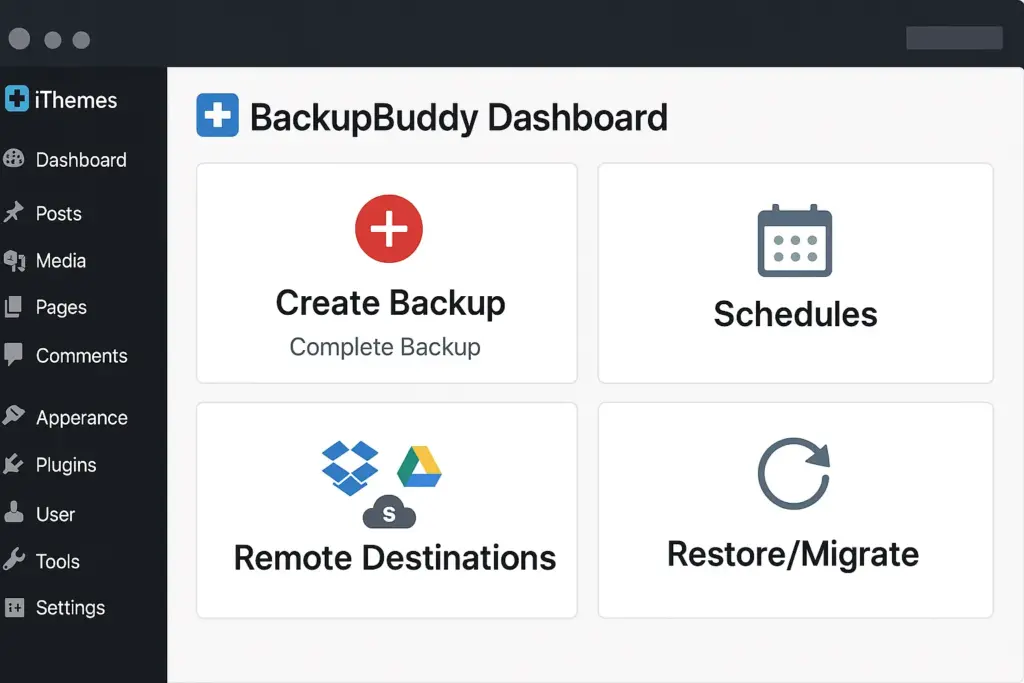
Check the version and storage destination
The Legacy changelog lists version 9.1.20 dated 27 July 2026 with a backup-download authorization fix. Compare your package with the current changelog before installation; an old filename or product label is not enough.
Google Drive correction: version 9.1.14 states that the Google Drive destination is no longer supported and that it was removed from affected schedules. Some overview documentation still lists Drive among destinations, but that conflicts with the release-specific notice. Do not configure a new Legacy backup plan on the assumption that Drive remains supported.
Check the destinations available in your installed version, authenticate the chosen account and confirm that a completed archive actually arrives off-site. A successful connection test does not prove that later scheduled transfers will complete.
BackupBuddy Legacy versus UpdraftPlus Free
The official UpdraftPlus listing documents scheduled backups, restoration and migration in its free version, with destinations including Dropbox, Google Drive and Amazon S3. The claim that free backup plugins generally lack scheduling or restores is inaccurate.
UpdraftPlus Premium adds options such as incremental backups, additional destinations and backups before updates. Compare the exact feature you need rather than treating a paid product as automatically more reliable. See our UpdraftPlus Premium review for the broader evaluation.
For an existing Legacy installation, verify current backups and restore access before replacing it. For a new setup, compare a maintained plugin or cloud service against your hosting support, storage requirements, retention and recovery time. Host backups may also be useful; ask what is retained and how you can restore when WordPress itself is inaccessible.
Download and installation checks
View the BackupBuddy package on PureGPL for the supplied version and contents. Check update arrangements and support separately. Do not assume the package includes Stash storage, developer account services or the current Kadence cloud product.
- Keep an independent backup of files and database before changing backup software.
- Confirm that you have the Legacy package you intend to use, and review its version-specific requirements.
- Test on staging. In WordPress, open Plugins → Add New → Upload Plugin, select the installable ZIP and activate it.
- Configure notifications, backup scope, a supported destination and a schedule appropriate to how often your data changes.
- Run a backup, review the log and verify the archive at the remote destination.
- Perform a restore test in an isolated environment before relying on the schedule.
What a useful restore test includes
Check that posts, media, users, plugins and settings are present after restoration. For a store, inspect representative orders and products without sending real customer emails or payments from the test copy. Record how long recovery takes and what credentials or files you needed.
Review exclusions: a backup job can complete successfully while omitting data you expected it to include. Keep recovery instructions and required access available outside the WordPress installation. Monitor failures and periodically repeat the test after major changes.
When using Legacy’s ImportBuddy workflow, follow the instructions for your exact version and target server. Do not practice restoration over a live site. Review the cleanup steps so restore scripts and backup archives are not left exposed after testing.
Frequently asked questions
Is BackupBuddy the current Kadence cloud backup product?
No. The legacy plugin and the cloud-first product have different backup and restoration systems. Identify them by their plugin folder and workflow, not just the displayed name.
Can I keep using a Legacy installation?
Evaluate its current compatibility, available maintenance and successful restore tests. Maintenance mode does not by itself mean your installed backup is unusable, but it matters when choosing a tool for a new project.
Does a completed backup guarantee recovery?
No. Verify the contents, remote copy and restoration procedure. Your recovery plan also depends on access to storage, server credentials and a suitable target environment.
Will backups affect site performance?
They can use CPU, disk and database resources. Measure the actual workload and schedule around busy periods where your tool allows it. No backup product should be described as universally impact-free.
Product naming, maintenance status, changelog and alternative checked 13 November 2026. This article update did not perform a new restore benchmark.